This blog post is a free choice. You can write about anything that happened this school year. You can write about any trips you may have taken, any presents Santa may have given you at Christmas, anything that you did that you enjoyed during the break, what you did on Halloween, any special events you attended, or any combination of these types of things.
Title your post "Free Choice"
minimum 3 paragraphs
minimum 150 words
include at least 2 pictures related to your writing.
Monday, January 5, 2015
Thursday, December 18, 2014
Google #7 Resume
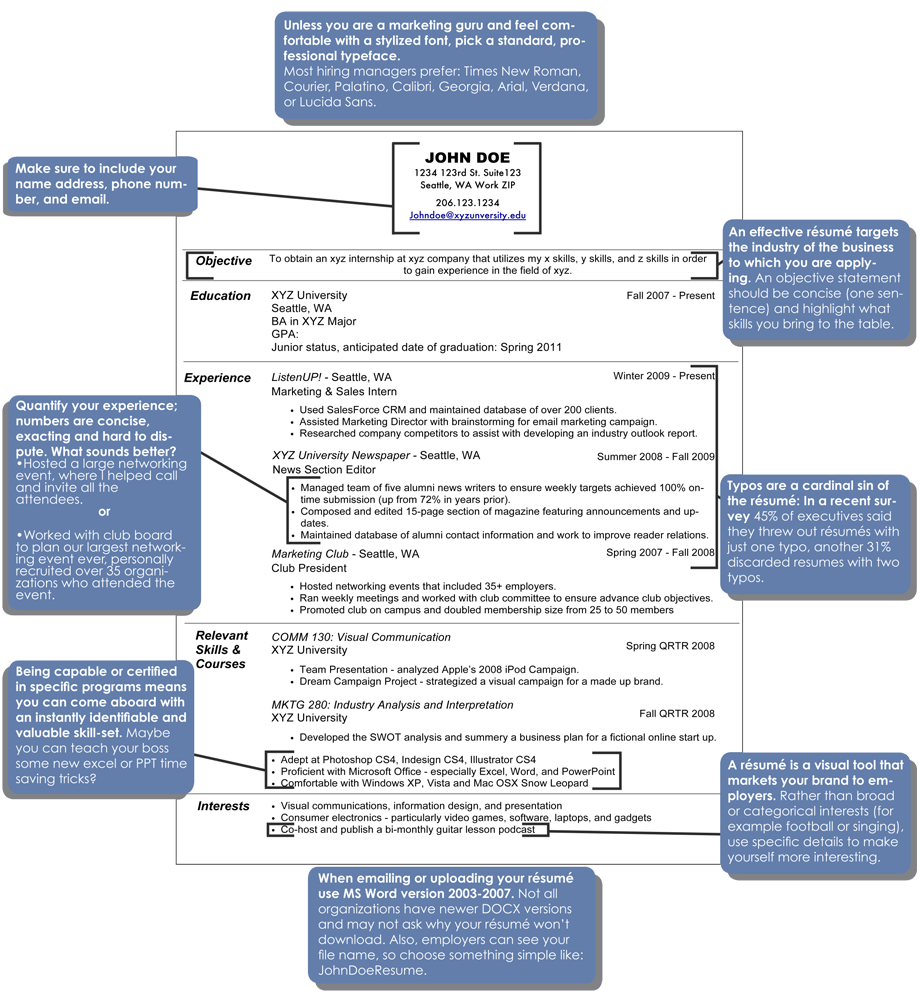
Today you are going to be creating a resume for yourself in Google Drive.
Use the picture below as a guide.
1) Center your name, address and contact information.
2) Include each of the 5 headings (Objective, Education, Experience, Relevant Skills & Courses, and Interests) If you have not taken any college or vocational courses name the fourth heading "Relevant Skills."
3) You don't need the horizontal lines to separate each category.
Notice that each heading is in bold and starts at the left margin. All of the information after each heading starts at the same tab unless it is a further indented bullet point. Correctly formatting a resume will make it look professional.
The last thing you want is your resume to stand out for being sloppy and/or unprofessional.
Tuesday, December 16, 2014
Blog Assignment- Typing
This is a blog assignment titled "Typing."
Go here and complete some typing tests.
1) You will take at least one of each of the 5 timed tests (1 min, 2 min, 3 min, 4 min, and 5 min). Choose from lessons #26-35. Change to a different lesson for each of the five tests.
2) You will take a screen shot (shift/apple/4-then drag a rectangle over the area you want copied) of the best result for each test. The picture is sent to the desktop. Right click the picture, click "get info" and rename as "I minute" or "2 minute" depending on which test it was.
3) You will post all 5 pictures on your blog titled, "Typing." Caption each picture with the type of test it was (1 minute, 2 minute, etc.).
You will insert the 5 results pictures in your blog. Make sure that you caption each photo with the type of test it was (1 min, 2 min, etc.).
4) This site also has typing games that will increase your typing speed. Try out the games and type which one is your favorite and why.
1 minute
|
2 minutes
|
3 minutes
|
My favorite game was Spacebar Invaders. Everyone try Spacebar Invaders at least once.
Monday, December 15, 2014
Google #5 Flyer
This is the fifth Google Drive Assignment
Today we are doing a one-page flyer document created with Google. The content of this flyer will be whatever you choose (lost dog, garage sale, baby shower, etc.).
Minimum requirements
Flyer must be school appropriate.
Large centered title in the document
(Lost Dog, Garage Sale, etc.)
at least 2 pictures (found in Google images)
at least 5 descriptive details about your topic. (you can
write in complete sentences or use bullet points)
Friday, December 12, 2014
Google #4 Budget Spreadsheet
Today we are doing one of the required parts of the applied skills portion of this class. We will be creating a budget spreadsheet using Google.
To begin, you must log in to Google and go to drive (documents).
Follow the directions that I give in class.
You are going to create a monthly budget.
Starting with cell A1, then A2, then A3, etc. through A10, you will type in these 10 expenses:
Rent
Utilities
Cable
Cell Phone
Car Payment
Insurance
Gas
Food
Entertainment
Savings
In cell A11 you will type Total.
Then you will select cells B1 through B10 and then click the dollar sign button. Then with the cells still selected click on the sum button found in the "Crazy E looking tool" at the end of the row of tools.
Now enter in dollar amounts in each of the cells. The program will automatically add the dollar sign and total these dollar amounts.
Finally, select all of the cells (words and dollar amounts) except for the total cells at the bottom.
Then click on insert chart (There is a button for this or you can find it under the insert tab).
Select the pie chart.
Position the chart so that it is to the right of the cells.
Thursday, December 11, 2014
Google #3 Budget Spreadsheet
Today, you are going to create spreadsheet in Google Drive. This spreadsheet will be a weekly schedule for next week (December 14) starting with this Sunday.
Across the top of your spreadsheet you will type the 7 days of the week starting with Sunday (skip the first cell).
Down the first column (A) you will type every hour starting with 6:00 am through 2:00 am. (skip the first cell). We will format the cells before we begin typing in the hours.
This schedule will have 147 cells to fill in.
You will color code the cells by changing the background color and the font color.
Across the top of your spreadsheet you will type the 7 days of the week starting with Sunday (skip the first cell).
Down the first column (A) you will type every hour starting with 6:00 am through 2:00 am. (skip the first cell). We will format the cells before we begin typing in the hours.
This schedule will have 147 cells to fill in.
You will color code the cells by changing the background color and the font color.
Monday, December 8, 2014
Blog Assignment- Hour of Code
For this assignment, you are going to complete an "Hour of Code." Click this link to begin.
After you finish the hour of code (it won't take an hour) you will download your certificate to your desktop. You will then do a blog post titled "Hour of Code." You will insert the image of your certificate and publish.
Subscribe to:
Posts (Atom)